4. Clean Up Your Disk
From the Start menu, type Disk Cleanup. This opens the trusty Disk Cleanup utility that’s been part of Windows for several generations of the OS. Disk Cleanup finds unwanted junk such as temporary files, offline Web pages, and installer files on your PC and offers to delete them all at once. You may even find that your Recycle Bin is bulging at the seams. This will generally only have a noticeable effect on speed if your drive is getting close to full, however.
If you don’t have disk defragmentation scheduled regularly, set that up in the Optimize Drives tool, which you can find by typing its name in the Cortana search box next to the Start button. Note that if your main disk is an SSD, then you needn’t bother with defragging, since there aren’t any moving parts reading the disk.
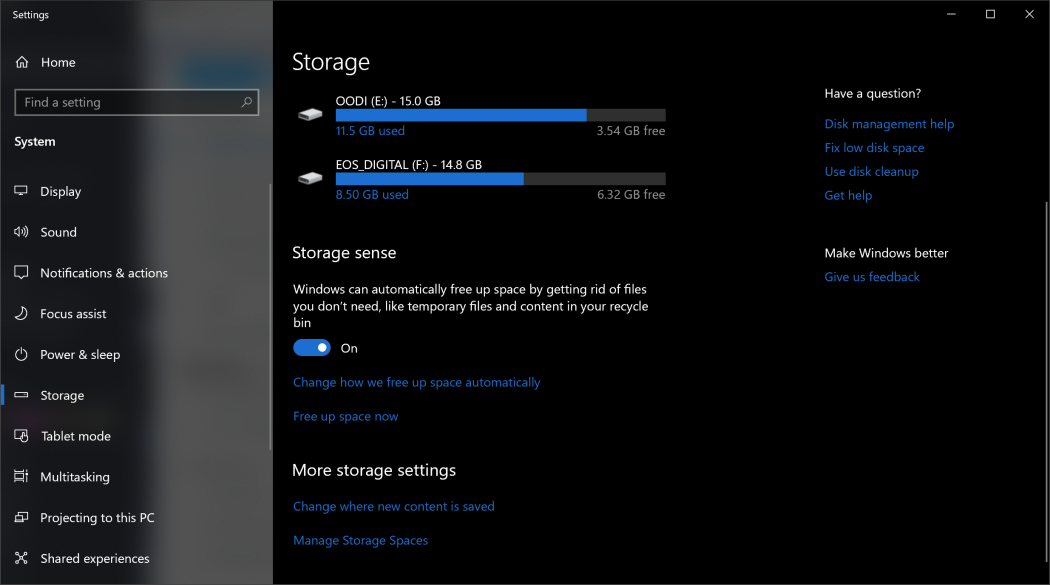
An even newer way to keep storage use is by enabling the Storage Sense option (see image above). This automatically frees up space by removing temporary files and Recycle Bin items. For a full rundown on how to use this feature, see How to Free Up Hard Disk Space on Windows 10.

 Kroon Digital